
Version 1.3 of the Resource Availability add-on brings numerous major improvements. These make it easier to visualize assigned and available resources and optimize the assignment process.
Resource Calendar
On the Booking Activities > Resources page, the calendar of assigned resources is now displayed. This gives you an overview of the resources you will need on a specific day and time.
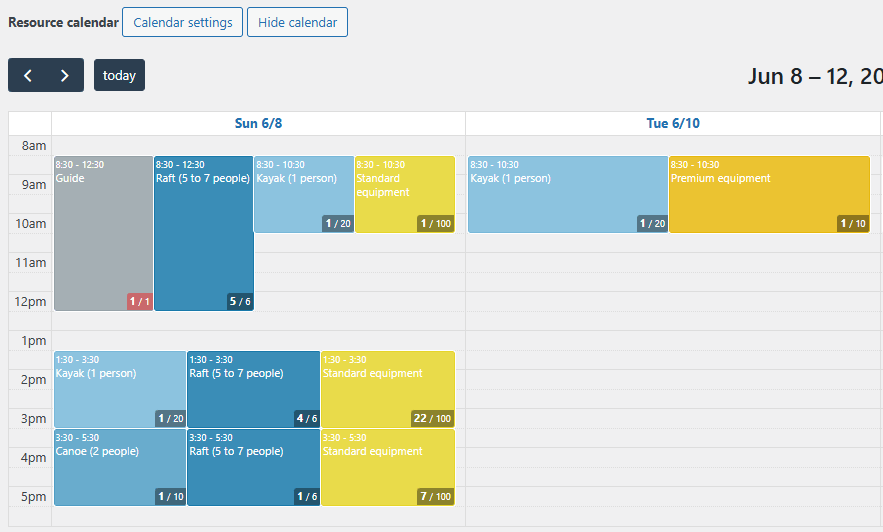
This calendar can be filtered using the filters above (the same ones used to filter the list).
You can also customize its appearance by clicking the “Calendar Settings” button (the Display Pack add-on offers many customization options). You can change the color of events in each resource’s settings.
Finally, clicking on an event will redirect you to the corresponding list of bookings.
Resource Calendar Shortcode
You can also display the calendar of your assigned resources on your site using the shortcode [bookingactivities_resource_calendar]. There are several parameters to filter and modify the calendar display, such as: resource, category, from, to, slotMinTime, and slotMaxTime. Here are some examples:
[bookingactivities_resource_calendar resource="1,4,7" category="2" from="2026-03-17 09:30:00" to="+7 days"][bookingactivities_resource_calendar category="1,2" from="today" to="2026-12-31" slotMinTime="09:00" slotMaxTime="17:00"]

Note : The Display Pack add-on offers more attributes to customize the calendar.
Total number of resources per period
The resources page includes a new filter: “Date”. This allows you to see which resources you will need and in what quantity at a specific time or for a given period.
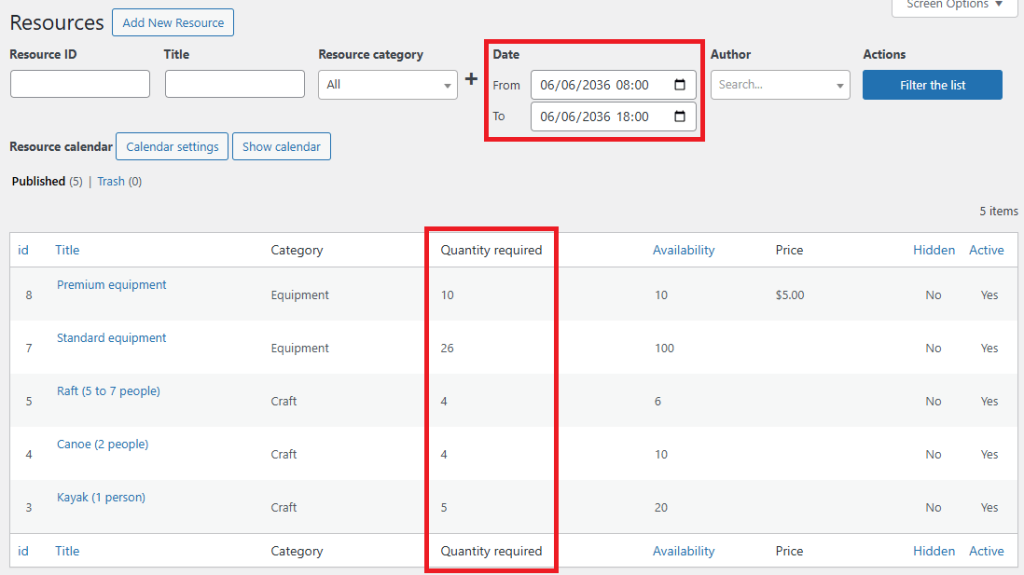
The “Quantity required” column appears in the list (remember to enable it in the screen options at the top right). It shows the maximum quantity of resources you will need during the requested period.
This is very useful if you need to quickly know how many resources you will need during the day, for example.
Preview Assigned Resources in a Tooltip
The list of resources assigned to each event is now displayed in the tooltip when you hover over the event on the Booking Activities > Bookings page. This allows you to quickly see the total number of resources assigned per event.
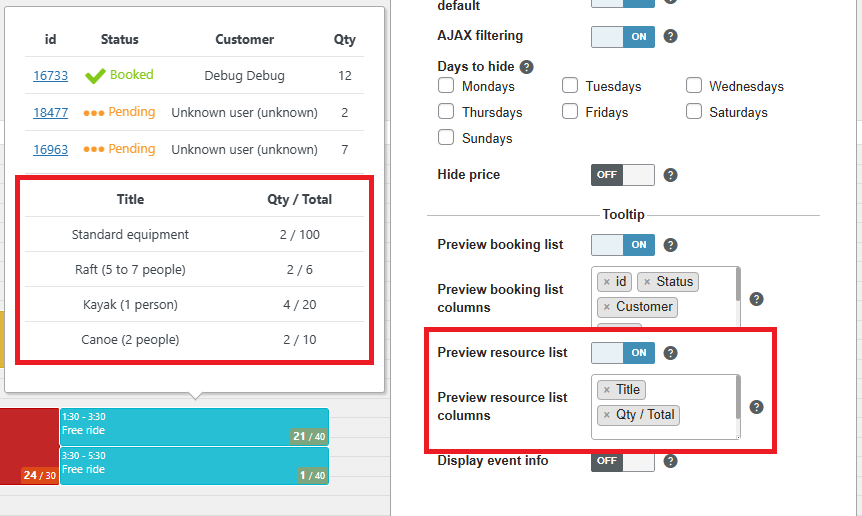
You can disable this feature or customize the displayed columns by clicking the “Calendar Settings” button.
With the Display Pack module, you can also display this list on the front end. You’ll find similar options in Booking Activities > Booking Forms > your form > Calendar Settings > Display tab, and you can use the {resource_list} tag in your event tooltips.
Displaying Availability When Editing Assignments
When you edit the resources assigned to a booking, the availability of each resource is displayed in the selection box. Additionally, the quantity field turns red if there are not enough resources available.
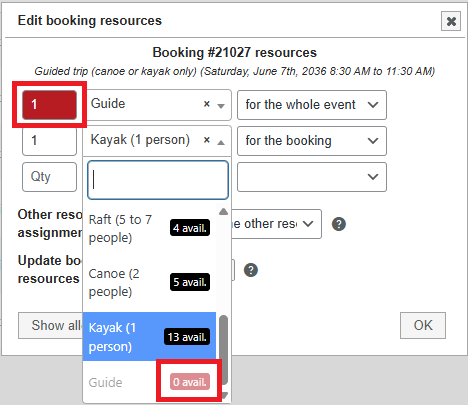
This allows you to manually assign resources while avoiding overbooking them.
Note: This is only a visual warning; you can still overbook a resource.
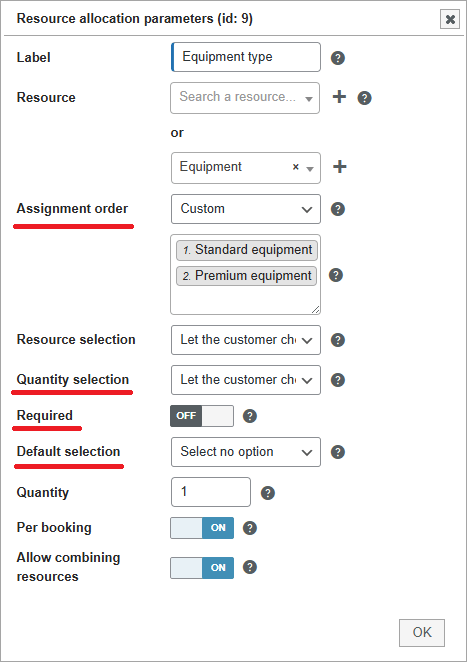
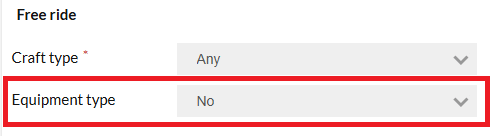
Make resources optional
You can now allow your customers to choose whether or not to assign certain resources to their booking.
Go to the resource allocation settings (docs) to find the “Required” option, which you can enable or disable.
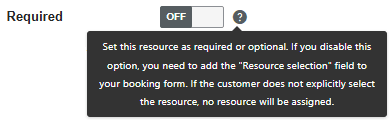
If the resource is optional, then it will not be assigned by default. You must add the “Resource Selection” field to your booking form, and the customer must manually select the resource for it to be assigned.
Default Selection
If the resource is optional, or if the customer has a choice between several resources, you can define the value selected by default in the selection box.
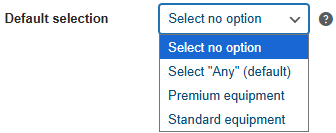
Furthermore, it is now possible to leave the field blank, even if the resource is mandatory, in order to force the customer to consciously choose a value.
Note: The “Resource Selection” field must be present in your booking form.
Quantity Selection
You can allow your customers to choose the quantity of resources they want in any situation, even if only one type of resource is allocated.

For example, if you rent quad bikes that can accommodate 1 or 2 people, your customers can:
- either book 1 quad bike for 2 people
- or book 2 quad bikes for 2 people
If the resource is optional, then the customer can book a number of resources that does not correspond to the number of bookings. For example, a customer can book a pool activity for 5 people but only want 2 “life jackets” for the children only.
Note: The “Resource Selection” field must be present in your booking form.
Assignment Priority
If you have allocated multiple resources, you can manually define their assignment order.
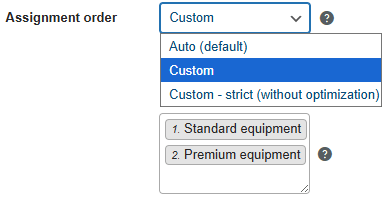
Resource assignment has been optimized in version 1.3. From now on, the minimum and maximum capacity of the resources is taken into account. This is why there are two options: “Custom” and “Custom – strict (without optimization)”.
In the first case, the system will prioritize the defined assignment order, but if the resources can accommodate more people than needed, it will try to find other resources better suited to the number of people. In the second case, the defined assignment order will be respected no matter what, even if the assigned resources are not filled to their maximum capacity.
For example, if you have 2 quad bikes that can accommodate 1 to 2 people, and 3 motorcycles for 1 person,
If the assignment order is Quad bikes > Motorcycles, then:
| Optimized | Strict | |
|---|---|---|
| 1 person | 1 motorcycle | 1 quad bike |
| 3 people | 1 quad bike and 1 motorcycle | 2 quad bikes |
| 4 people | 2 quad bikes | 2 quad bikes |
If the assignment order is Motorcycles > Quad bikes, then:
| Optimized | Strict | |
|---|---|---|
| 1 person | 1 motorcycle | 1 motorcycle |
| 3 people | 3 motorcycles | 3 motorcycles |
| 4 people | 2 motorcycles and 1 quad bike | 2 motorcycles and 1 quad bike |
If you select the assignment order “Auto (default)”, then the system will automatically determine the assignment order, and it will always be optimized. The automatic order prioritizes resources with the highest maximum capacity > minimum capacity > availability.
Replace an assigned resource
The “Replace resources” option has been added to bulk actions dropdown in the booking list, since version 1.3.1.
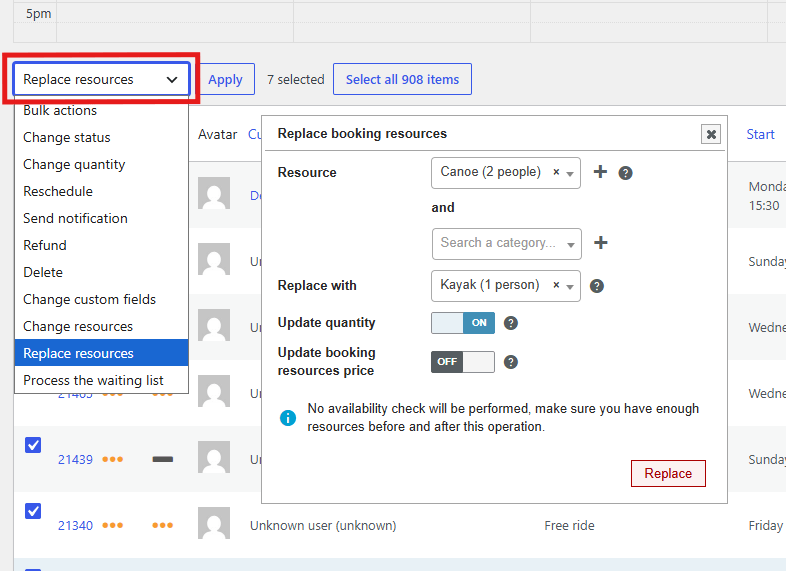
This feature allows you to replace an assigned resource with another. An option allows you to automatically update the assigned quantity if the replacement resource does not have the same capacity as the current resource.
You can also choose not to select any replacement resource. In this case, the resource will no longer be assigned to the selected bookings and no other resource will replace it.