
Booking Activities 1.17 improves existing calendar settings and adds new ones.
Show events outside of availability period
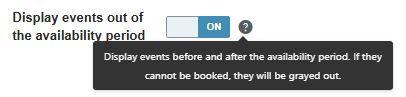
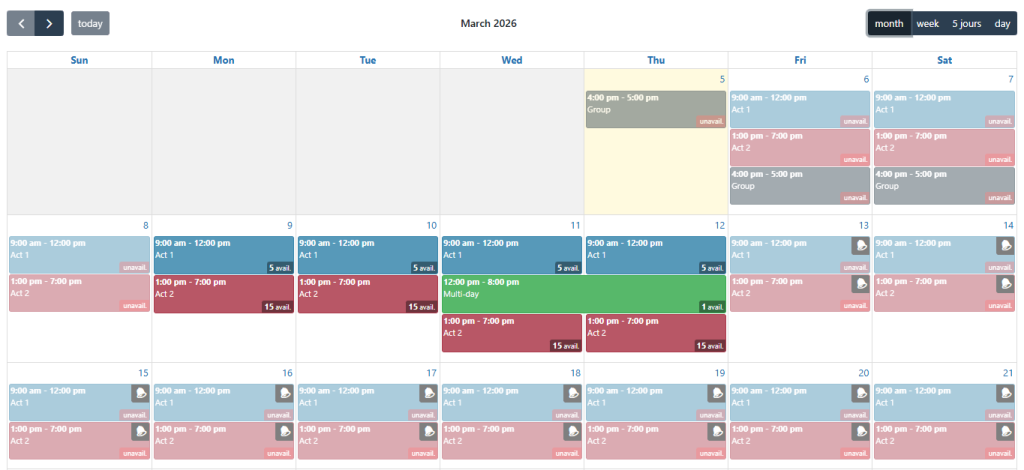
If you have defined an availability period in your form calendar settings, you will see a new option: “Display events out of the availability period”. This allows you to display events starting before or after this period as unavailable.
Set days off globally
You can now set your days off globally in the Booking Activities general settings instead of having to enter them in each calendar’s settings. You can still enter form-specific days-off.
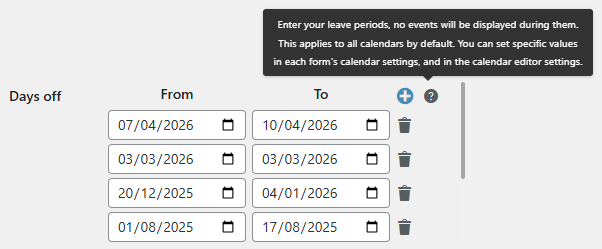 Global days off
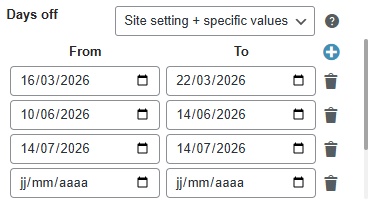 Form-specific days off
Prohibit events overlaping with days off
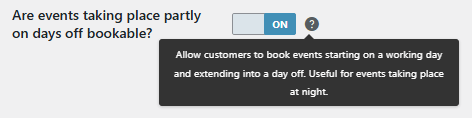
The “Are events taking place partly on days off bookable?” option in the Booking Activities general settings allows you to enable or disable bookings for events that start before but continues during a leave period. This can be useful if your events span multiple days.
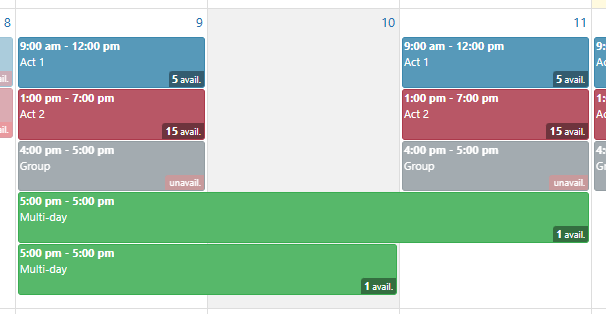 Overlaping with days off allowed
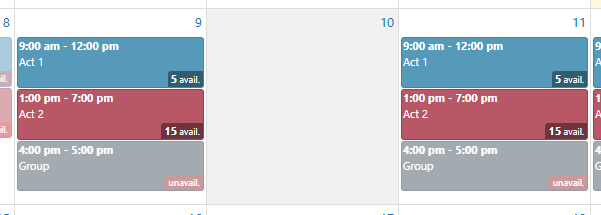 Overlaping with days off not allowed
Select the first available event
Find the “Auto select first event” option in the Calendar Settings > Actions tab. Enabling this option automatically selects the first available event when the calendar is loaded.

Hide the calendar if the event is pre-selected
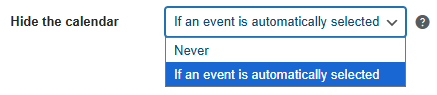
A useful complement to the previous feature, the “Hide calendar” option located in the “Display” tab allows you to automatically hide the calendar if an event has already been pre-selected.
Other ways to pre-select an event are via URL parameters and via the form actions “Redirect to URL” or “Redirect to product page” (docs).
Already started events are displayed by default
If you enable the “Are started events bookable?” or “Are started groups of events bookable?” option in the Booking Activities settings, then events or groups of events that have already begun will automatically be displayed on your booking forms. It is no longer necessary to enable the “Display past events” option in the calendar settings.
Past events can always be displayed
The “At the latest” option in the calendar settings allows you to prevent last-minute bookings by imposing a minimum time between the booking date and the event date. You can now use this option in conjunction with the “Display past events” option.
Show only booked group of events
The “Groups only” and “Booked only” options are now compatible. Enabling both options will display only booked groups of events.
Subscription linked to a Booking Pass
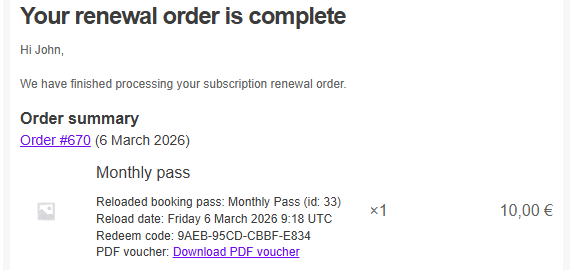
You can now sell your Booking Passes (with the Prices and Credits add-on, version 1.8.36 or higher) as a subscription using a compatible subscription plugin (docs). For example, you can sell a subscription that automatically grants 100 credits each month. The customer’s Booking Pass will be automatically refilled and extended upon receipt of the renewal payment.
Refund bookings for a cancelled event
When you delete a booked event or group of events from the calendar editor, you are given the option to cancel future bookings. If you choose to cancel them, a new dialog box will then offer to automatically refund them, if the refund is possible (since version 1.16.48).