
When a waiting list booking is automatically (or manually) accepted, the customer is notified by email and must confirm or decline it from their booking list.
Confirmation Deadline
When the booking status changes to “Waiting list – Accepted”, an expiration date is set. The customer must confirm the booking before this date; otherwise, it will be automatically declined.
You can set this deadline to the minute in:
- Booking Activities > Settings > Cancellation tab > Accepted waitlisted bookings expire after
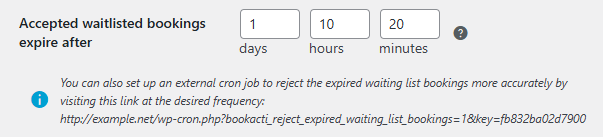
Warning: the expiration process is triggered by WordPress’s cron job once per hour, so this deadline is not exact. The booking will expire at the latest one hour after its actual expiration date, or even later if your site doesn’t generate enough traffic, as the process is only triggered after a visit. For a more accurate expiration, you need to configure an external cron job (not a plugin) to visit the provided URL more frequently.
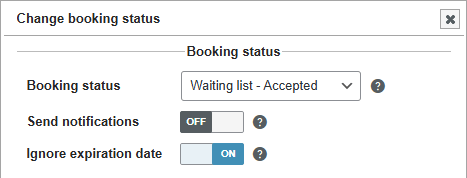
Note that if you manually change the booking status to “Waiting list – Accepted” from Booking Activities > Bookings, you have an option to not set an expiration date. In this case, the booking will remain in this status indefinitely.
Confirm or Decline
Waitlisted bookings are displayed with the others, in the customer’s booking list. Simply copy and paste the shortcode [bookingactivities_list] (docs) onto the desired page.
If you are using WooCommerce, the booking list is displayed by default for logged-in customers on the “My Account” page > “Bookings” tab.
If the customer does not have an account, see the documentation below.
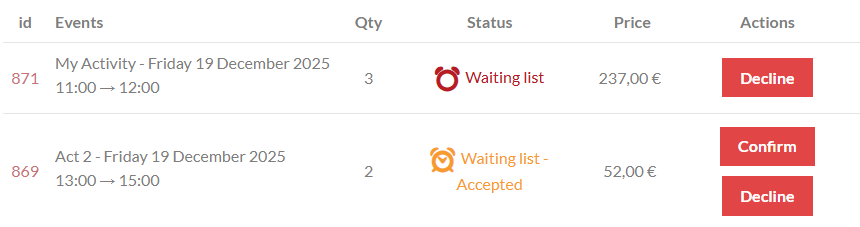
The action buttons depend on the booking status:
- Waiting List: “Decline” only, allowing the customer to unsubscribe from the waiting list.
- Waiting List – Accepted: “Confirm” or “Decline”.
A dialog box requests confirmation before the booking is permanently modified.
If the booking is paid, the price is displayed here. This is the current price on the website, not the price at the time the customer joined the waiting list.
Confirm with payment
If you are using WooCommerce, the reservation will only be confirmed once the customer has paid.
To do this, the waiting list booking must meet one of these two conditions:
- The booking was made from a product page (docs).
- The booking was made from a booking form configured to add a product to the cart or redirect to a product page (docs).
The customer must then click the “Confirm” button and validate the dialog box. This will create an order.
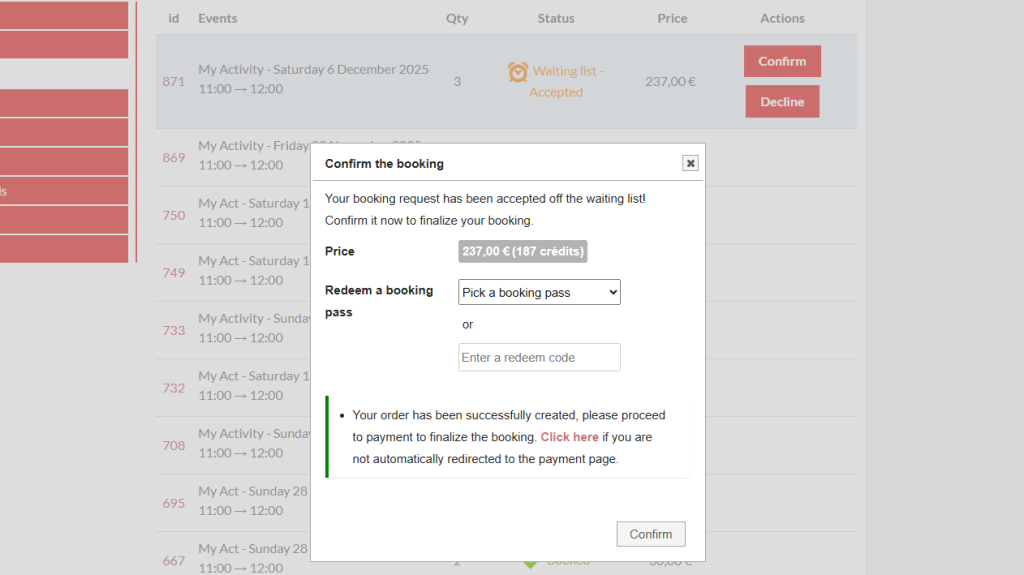
The customer is then automatically redirected to the payment page.
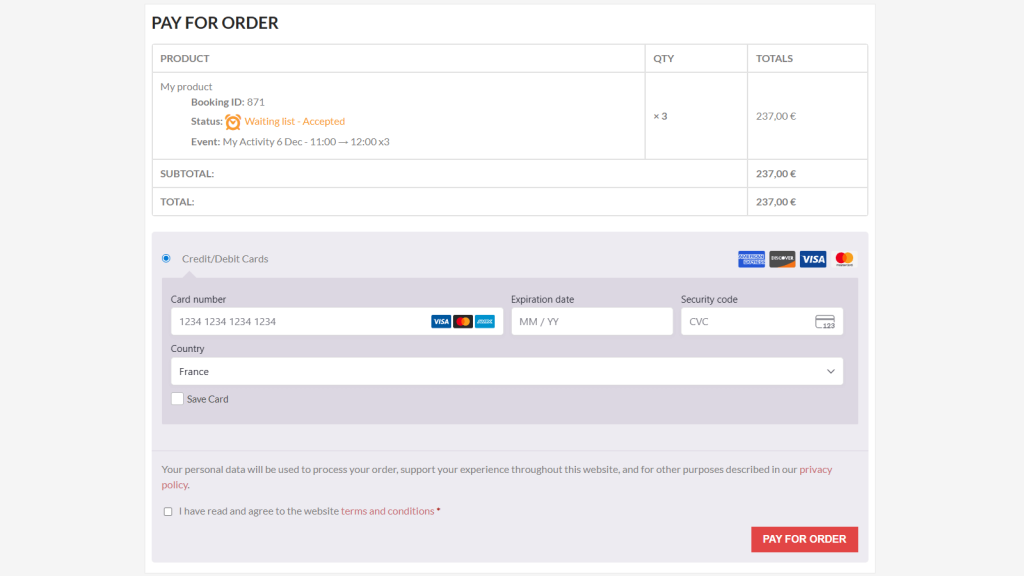
Once the payment is validated, the booking status changes to “Booked” or “Pending”, depending on the payment gateway used.
If you are using the Prices and Credits add-on, the customer can pay with credits by selecting their Booking Pass in the confirmation dialog box. In this case, the Booking Pass is debited and the booking is validated immediately.
Confirm or decline without an account
If the customer who joined the waiting list does not have an account, you must provide them with a link containing an authentication key to the page where the shortcode [bookingactivities_list] is located. This link will allow the customer to view and modify their bookings without being logged in:
- Go to Booking Activities > Settings > Notifications tab
- Go to the settings for the notification “Booking status turns to “Waiting list””
- In the email content, add a link to the page containing the shortcode
[bookingactivities_list]and add the parameteruser_auth_key={user_auth_key}to the URL - Do the same for the notification “Booking status turns to “Waiting list – Accepted””
For example,
- if your page URL is https://example.net/my-bookings/ then the link to put in the notifications is https://example.net/my-bookings/?user_auth_key={user_auth_key}
- If your page URL is https://example.net/?p=123, then the link to put in the notifications is https://example.net/?p=123&user_auth_key={user_auth_key}
You can then customize the notifications sent to customers and to the administrator when an event becomes available or when a waiting list booking status changes.